How to lock your look in stills before you spend a single video credit
Generate and approve keyframes in an image model, then hand them to a video model as first frames. You get consistent characters and locations across shots, and far fewer wasted video generations.
You write a good prompt for a video model, and the clip comes back with a woman in a green coat, in a kitchen that is almost right. You regenerate for the next shot and the coat is now olive, the kitchen has a different window, and her face has drifted. Text-to-video is a lottery on every single draw, and each draw costs you video credits. By shot six, you are matching things by eye and burning budget on look problems that have nothing to do with motion.
The fix is to split the job in two. Stills are cheap and fast to iterate, so you solve character, wardrobe, lens feel and location in an image model first. Then you give the approved still to a video model as the first frame and ask it only for motion. One model decides what things look like, the other decides how they move. Neither is asked to do both at once.
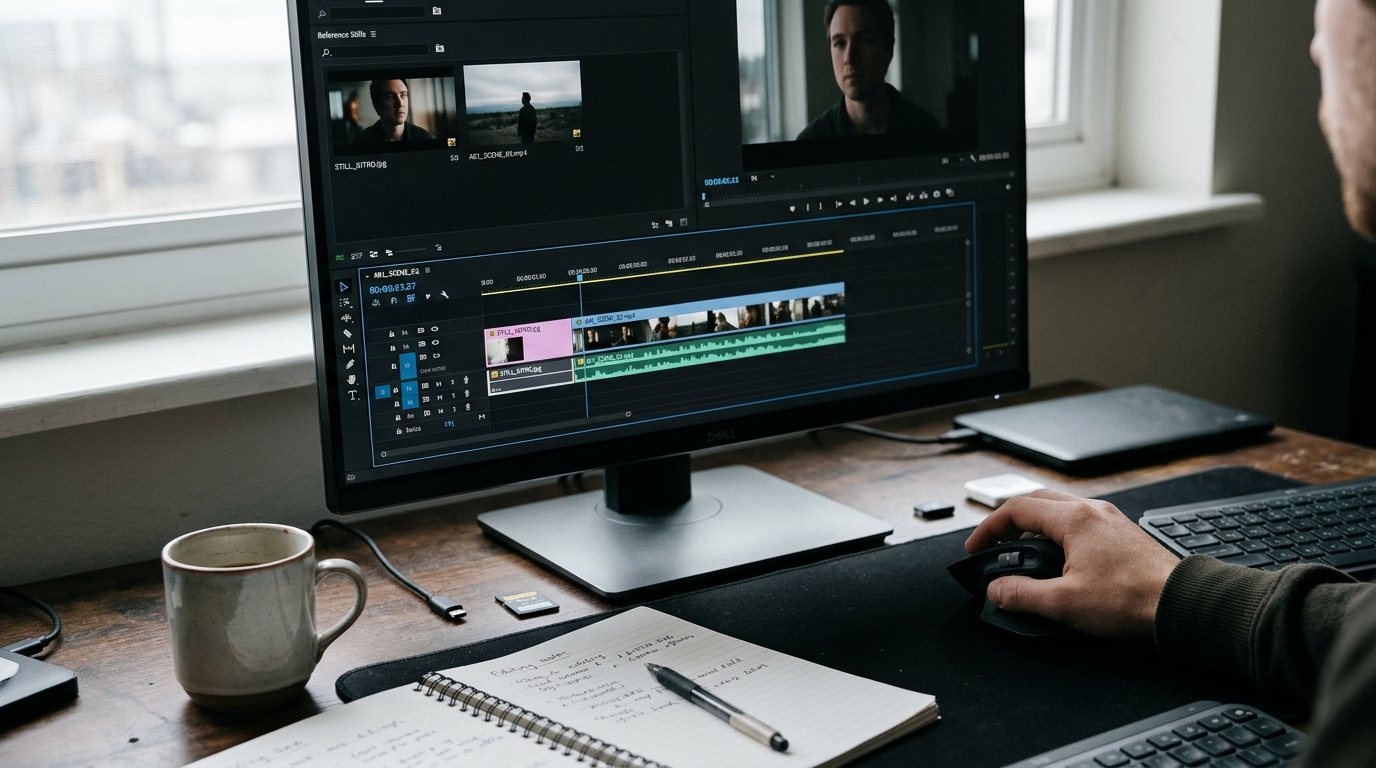
Step 1: build a look frame for each location and character
Before any shot, generate a single reference still per character and per location. Keep the prompt plain and physical.
```
Medium shot of a woman in her forties, short grey-streaked hair,
mustard wool coat over a navy jumper, standing at a narrow kitchen
counter. Overcast daylight from a window camera left. 35mm lens,
shallow depth of field, muted colour, slight film grain.
```
Run it until you have one frame you would be happy to cut to. Save it with a clear name, such as `ELENA_kitchen_master_v3`. This is your look bible. Every later keyframe gets built from it, either by feeding it back into the image model as a reference or by copying its wording exactly.
Step 2: generate a keyframe for every shot, not just the first
For each shot on your list, make a still with the same wardrobe and lighting wording and only the framing changed: a close-up, an over-the-shoulder, an insert of hands on a mug. Compare them side by side on one screen. Fix mismatches here, where a fix costs seconds, not at the video stage.
Step 3: hand the keyframe to the video model with a motion-only prompt
Upload the still as the first frame. Your text prompt should now describe movement and nothing about appearance, because the image already answers that.
```
She lifts the mug with both hands and looks toward the window.
Slow push-in on the camera. Steam rises from the mug.
No cuts, no new people entering frame.
```
If you re-describe the coat, the room or the lighting, you give the model a chance to contradict the image. Keep the prompt to action, camera and what must not change.
Step 4: chain shots with the last frame
When a shot needs to continue, pull the final frame of the approved clip, check it for drift, and use it as the first frame of the next clip. If the last frame has softened or the face has slipped, run it back through the image model to repair it before chaining. A chain of three or four shots from repaired frames holds together far better than three independent generations.
What you should see
Before: six text-to-video generations per shot, each with a slightly different coat, window and face, and a colour grade that has to paper over all of it. After: two or three video generations per shot, because the look is already decided and you are only judging motion. Your cuts between close-up and wide stop jumping, and your selects sheet fills with usable takes instead of near misses.
This works with whichever image and video models you currently prefer, as long as your video model accepts a first-frame input. Check that before you commit a project to the method.
Try this next
Pick one scene from your current project, build one look frame per character and location, then generate keyframes for just three shots. Run each through video with a motion-only prompt and compare the hit rate against your last text-only scene.