How to repair AI footage in the edit by upscaling and interpolating in the right order
Upscaling and frame interpolation can rescue a soft or stuttering AI clip, or make its flaws louder. The order you apply them in decides which one you get.
You have a clip you like. The performance works, the framing is right, and then you notice the problems on a big monitor: the image is soft, the motion has a faint stutter, and a flicker crawls across a brick wall in the background. You push it through an upscaler, then an interpolator, and somehow the flicker is now sharper and the stutter has turned into a rubbery smear.
The tools are rarely the problem. The order is. Each process treats the previous one's output as truth, so any flaw you leave in gets amplified by the next step. A repair pass works when you clean first, enlarge second, and smooth last, and when you check each stage before committing to the next.
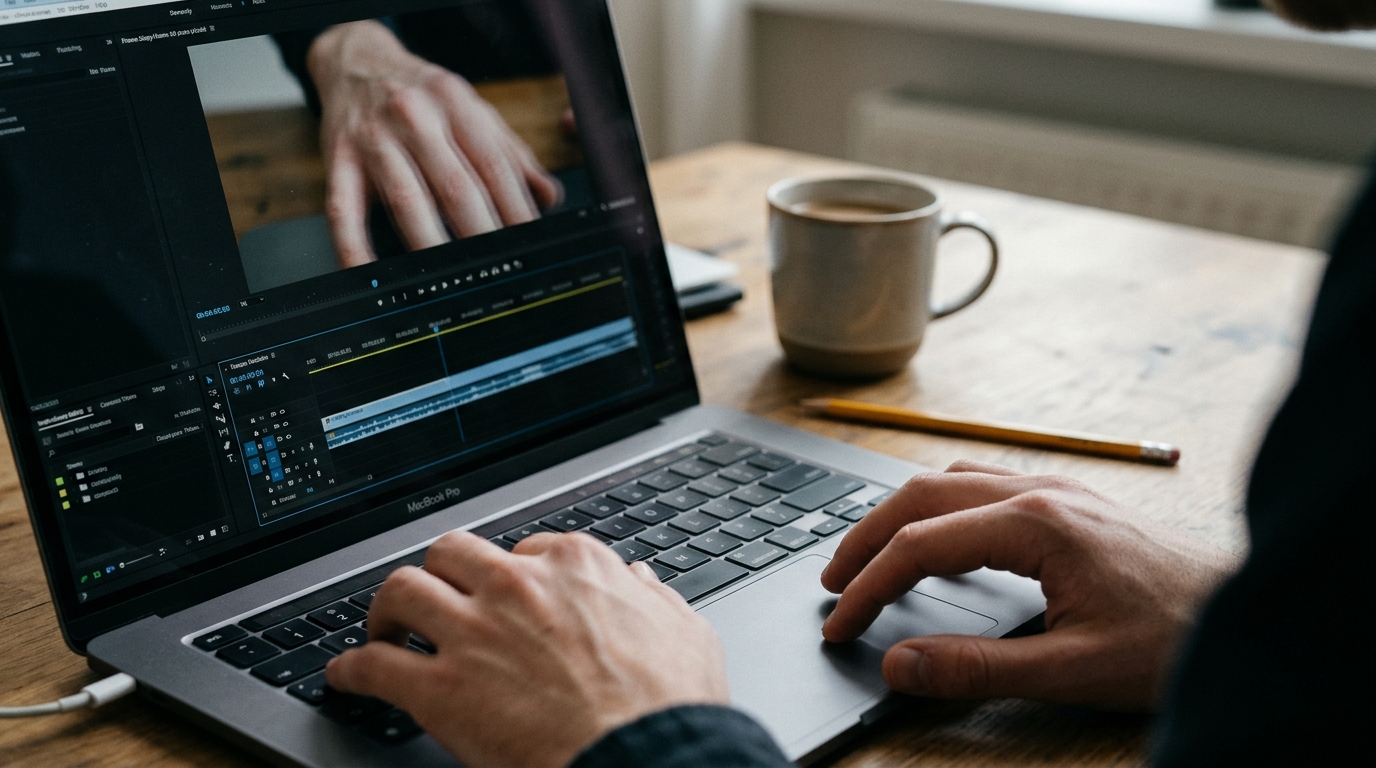
The order that holds up
Work on a duplicate of your selected clip, never the original. Then run these four stages in sequence.
1. Stabilise and de-flicker at native resolution. Flicker and slight wobble are cheaper to remove when there are fewer pixels to process. Apply a de-flicker or temporal noise reduction pass at the resolution the model gave you.
2. Upscale. Go to your delivery resolution, or one step above it if you plan to reframe. Use a conservative setting. Aggressive sharpening invents texture on skin and fabric that changes from frame to frame, which reads as crawling.
3. Interpolate only if needed. If the motion already feels fluid, skip this. Interpolation is for clips with visible judder, or for slowing a moment down.
4. Grade and add grain last. A fine, even film grain laid over the finished clip hides the residual shimmer that no repair pass removes.
Settings to start from
These are starting points to adjust by eye, not rules.
```
Stage 1 De-flicker: low strength, temporal window 3 to 5 frames
Stage 2 Upscale: 2x, sharpening at 20 to 30 percent, face enhancement off first
Stage 3 Interpolation: 2x only, for slow motion or to smooth judder
Stage 4 Grain: fine, monochrome, around 10 to 15 percent opacity
```
Turn face enhancement off for your first pass. Many upscalers rebuild faces independently on each frame, so the eyes and teeth can subtly change between frames. If the face looks soft after the upscale, switch it on at low strength and compare against the clean version.
Check at the right zoom
Judge every stage at 100 percent, not fit-to-window. Scrub through the clip at normal speed once, then step through frame by frame on any area that looked suspect. Three places hide the damage: hair edges, hands in motion, and fine repeating patterns such as blinds, knitwear and brickwork.
If interpolation produces ghosting around a moving hand, do not fight it with settings. Cut the clip where the hand crosses the frame and bridge it with a cutaway, or run interpolation only on the section before and after. Interpolating a whole clip to fix two bad seconds is the most common way to ruin the good ones.
What you should see
Before, run in the wrong order: a sharpened clip where the wall flickers harder, skin has a plastic crawl, and slow motion shows doubled edges on anything moving fast.
After, run in the right order: steadier backgrounds because the flicker was removed before it was enlarged, skin texture that stays put from frame to frame, and slow motion that either looks smooth or has been trimmed out of the problem section. The grain on top ties the clips together, so repaired shots sit next to untouched ones without announcing themselves.
Try this next
Pick the one shot in your current cut that bothers you most on a large screen. Duplicate it, run the four stages above in order, and export the original and the repaired version side by side. Watch both at full screen, once each, without pausing. If you can't tell which is which, keep the repair and move on to the next shot.