How to record your dialogue first and build AI shots around the voice
Generating the picture first and fitting a voice to it gives you stiff, late or rushed lines. Record the performance first, then cut and generate to its timing.
You have a scene with two characters and six lines of dialogue. You generated the shots first, because the picture is the exciting part, and now you are trying to make a voice fit a mouth that was never told what to say. The line runs two seconds long for the clip. You speed it up and the character sounds like they are late for a train. You trim a breath and the sentence loses its meaning.
The problem is order. In a live-action edit, the performance sets the timing and the picture follows it. When you generate video first, you hand the timing to a model that knows nothing about your script. Flip the order. Record the voice, edit the audio into a finished scene, and only then make the pictures that sit on top of it.
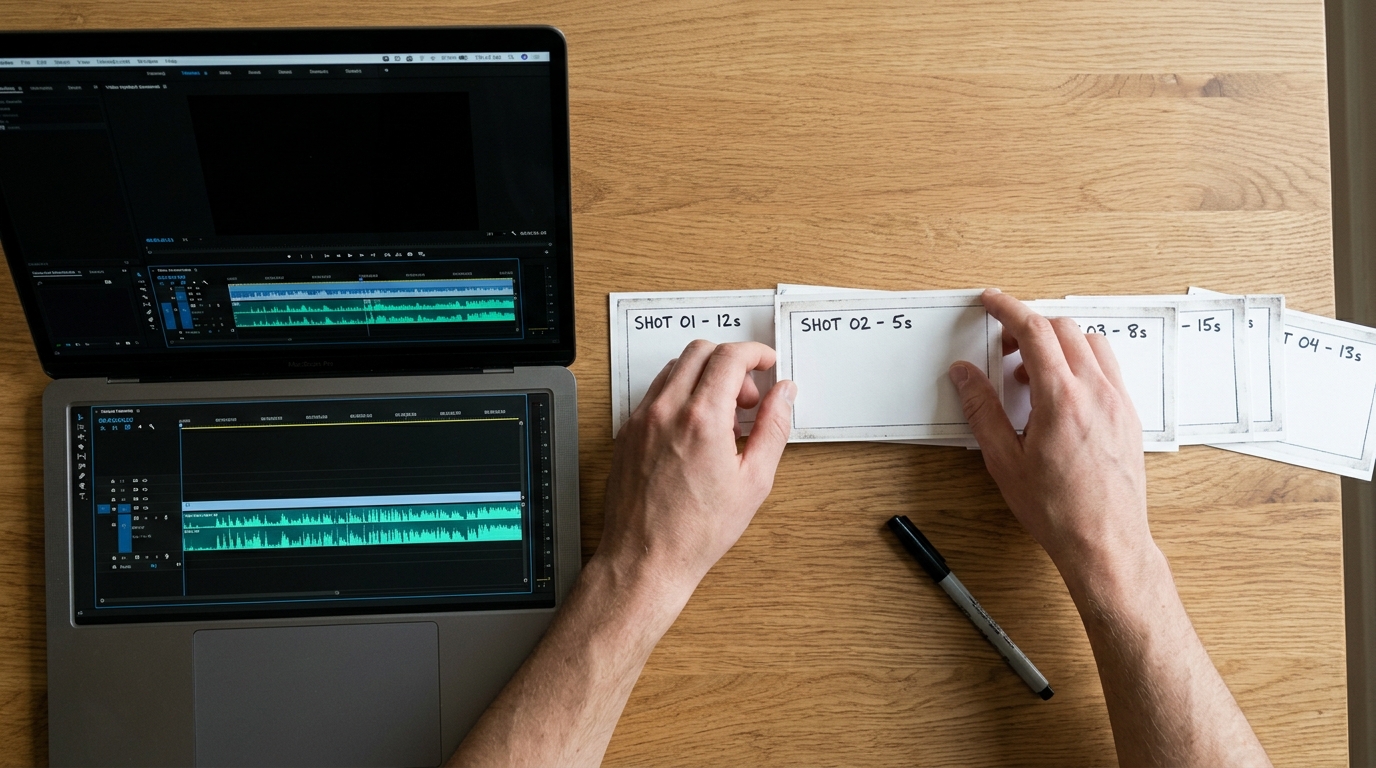
Step 1: Record or generate the voice as one continuous take
Write the scene as a single block of dialogue with the other character's lines included. Record or synthesise it as a real exchange, not as isolated lines. Leave the natural gaps between speakers, and keep any hesitation that sounds human.
If you are using a synthetic voice, generate each line three times and pick by ear, not by the waveform. Name the files so you can find them again:
```
sc04_anna_L01_t2.wav
sc04_marcus_L02_t1.wav
sc04_anna_L03_t3.wav
```
Step 2: Cut the audio into a finished scene before any picture exists
Place every line on a timeline with only audio. Set the pauses by feel: a beat of silence before a hard answer, an overlap where one character cuts the other off. Play it with your eyes closed. If the scene does not work as a radio play, no picture will rescue it.
When it works, read the timecodes off your timeline. Each line now has a real duration, and that duration is the length of the shot you need.
Step 3: Generate shots to the length of the lines
Most video models give you clips in fixed short lengths, so choose the length that covers the line plus a little spare on each end. A line that runs 3.4 seconds needs a clip of at least 4 seconds, with room to trim the head and tail in the edit. Write the duration into your shot list next to the line:
```
Shot 04C | Marcus, close-up | L02 | 3.4s line | generate 5s
Prompt: Close-up of a man in his fifties at a kitchen table,
looking slightly left of camera, mouth closed, listening,
then beginning to speak. Static camera, soft window light.
```
Note that the prompt describes the start of speech, not the content of it. The model cannot hear your line, so give it a face that is ready to talk.
Step 4: Run lipsync last, on the chosen take only
Pick your best picture take first. Then run your voice file through a lipsync tool on that one clip, not on every candidate. This saves credits and keeps your selects honest. Check the result at full speed, then frame by frame on the plosives (p, b, m), where bad sync shows first.
If a line fails, you now have a choice you did not have before. You can regenerate the picture, or you can cut away to the listener for the difficult words and let the voice carry over the top. Because the audio is already locked, that cutaway costs you nothing in timing.
What you should see
Before: lines squeezed or stretched to fit clips, pauses that feel arbitrary, and mouths that drift a syllable off. After: pauses that land where the scene wants them, shots that are the right length on the first generation, and a lipsync pass you run once per shot instead of five times.
Try this next
Take one existing scene with dialogue. Strip out the voice, rebuild the audio as a standalone radio edit, and list the real duration of each line. Then check how many of your current clips are the wrong length for the lines they carry. That number tells you what to regenerate first.