How to organise a multi-scene AI film project so nothing gets lost
Versioning chaos, missing takes, and regenerated shots that no longer match the cut: here is a folder structure and naming discipline that keeps a solo AI film project under control from first prompt to final export.
By the time you are three scenes into a short film, the folder on your desktop has become a problem. There are files named `final_v3_FINAL_USE_THIS.mp4`, a generation you loved that you cannot find because you exported it without a scene number, and a batch of takes from last Tuesday that may or may not be the ones you cut against. You remember which prompt produced the good result, roughly, but you cannot reproduce it because you never wrote it down anywhere permanent.
This is not a creative failure. It is a logistics failure, and it compounds fast. A solo AI filmmaker is also the director, the line producer, the editor, and the archive department. When those roles do not share a system, the director's instinct gets wasted on the producer's admin. The fix is not complicated software. It is a small set of conventions you decide on before the project starts and then refuse to break.
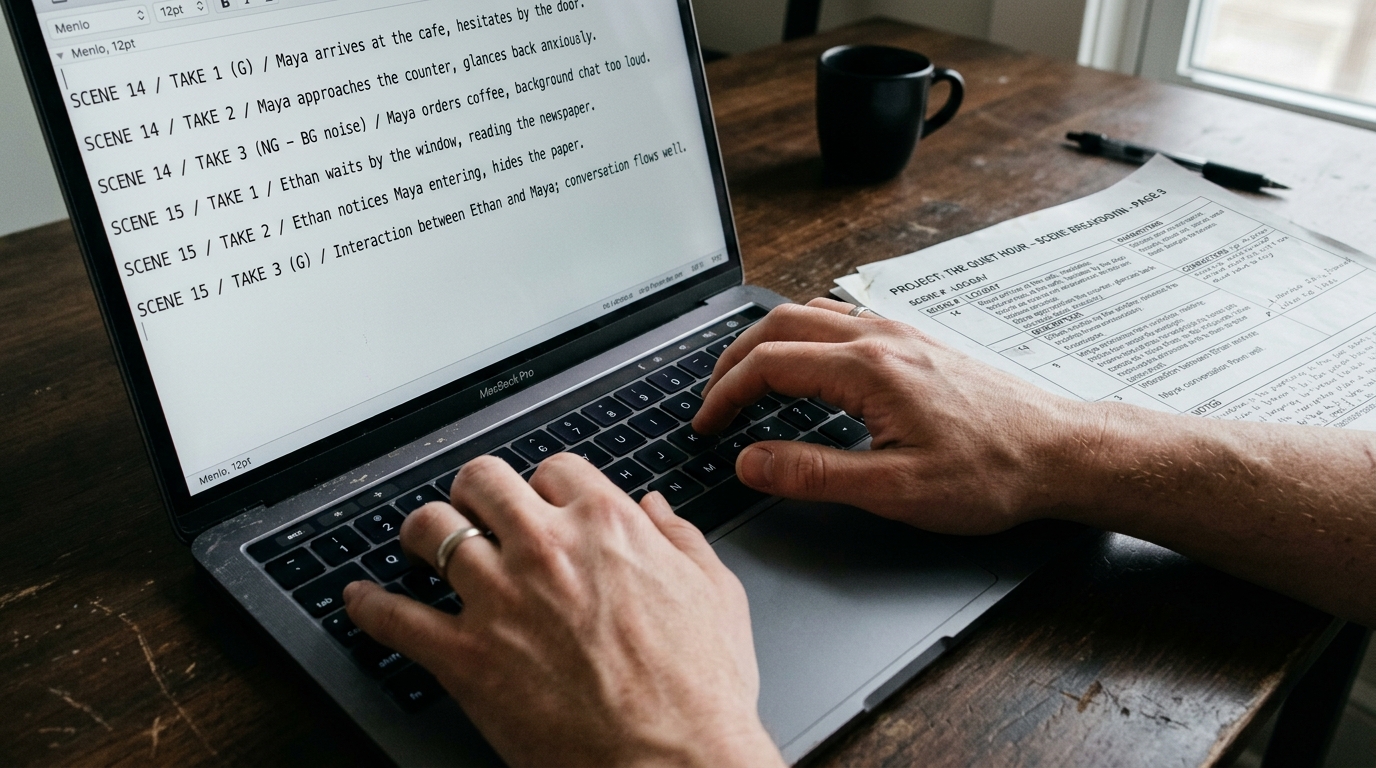
Set up your folder structure before you generate anything
Create one root folder per project, named with the project title and start date in ISO format so it sorts correctly. Inside it, four top-level folders:
```
2026-09-06_PROJECT-TITLE/
00_script/
01_generations/
02_edit/
03_delivery/
```
`00_script` holds your scene breakdown, your prompt log (more on that below), and any reference images. `01_generations` is where every raw output lands, never the desktop. `02_edit` holds your project files and exports. `03_delivery` holds platform-specific masters only.
Inside `01_generations`, mirror your scene structure:
```
01_generations/
sc01/
sc02/
sc03/
```
Each scene folder gets takes named with a zero-padded take number and a one-word descriptor of what changed:
```
sc01_t01_wide.mp4
sc01_t02_closer.mp4
sc01_t03_closer-slower.mp4
```
The descriptor is not for beauty. It is so that three weeks later, when you are back in the edit and wondering why `t03` exists, the filename tells you.
Keep a prompt log as a plain text file, not in your head
Every generation that goes into the `01_generations` folder should have a corresponding log entry. A spreadsheet works. A plain `.txt` file works. The format matters less than doing it every time. A minimal entry looks like this:
```
sc01_t03_closer-slower
Model: [model used]
Date: 2026-09-06
Prompt: Low-angle medium shot, a woman in her fifties sits at a kitchen table, hands wrapped around a ceramic mug, overcast daylight from a window at frame left, slow deliberate push in, 16mm grain, muted green and cream palette
Settings: duration 6s, aspect 16:9
Notes: Better framing than t02 but motion drift in background wall at 4s mark
```
That notes field is the one people skip and always regret. Write down what is wrong with a take, not just what it is. When you come back to decide whether to regenerate or cut around an artefact, you want to know what you already tried.
Use a scene status column so you know where you are at a glance
In whatever you use to track scenes, add a status column with four values only: `GENERATING`, `SELECTS DONE`, `CUT`, `LOCKED`. Nothing else. When a scene is `GENERATING`, you are still making takes. `SELECTS DONE` means you have picked the takes you want to edit with and moved them into a `_selects` subfolder. `CUT` means it is in the timeline. `LOCKED` means the edit is picture-locked and you are not going back.
The reason to be strict about `LOCKED` is that AI projects have a specific failure mode that live-action projects do not: you can always regenerate. That option feels like creative freedom but it is often just deferred decision-making. Marking something locked is a small discipline that forces you to treat the edit as final.
Version your edit project files, not just your exports
Name your edit project files with a date and a brief note on what changed:
```
2026-09-06_PROJECT-TITLE_sc01-sc03-rough.prproj
2026-09-08_PROJECT-TITLE_sc04-added-audio-temp.prproj
```
Do not save over previous versions. Disk space is cheap and lost edit states are not recoverable. When you share a cut for feedback, export from the dated project file and name the export to match:
```
2026-09-08_PROJECT-TITLE_rough-cut-v1.mp4
```
The discipline here pays off when a note comes back asking you to restore something you changed four sessions ago. You open the earlier project file instead of trying to remember what you did.
Before you start the next scene, spend five minutes on the previous one
At the end of each session, update your status column, write any missing prompt log entries, and move your selects into their subfolder. Five minutes now saves forty minutes of archaeology later. Treat it the same way a set crew treats the wrap checklist: not optional, just the last part of the job.
The test of a good system is whether a stranger could navigate your project folder and understand what exists and what was tried. Build to that standard, and your next project will start faster than this one did.