How to cut around an AI artefact versus when to just regenerate
Every AI clip has a flaw somewhere. The decision you make in the next thirty seconds, cut around it or send it back to the generator, determines whether you finish your film this week or next month.
Every clip you pull into your timeline from an AI generator carries something you did not ask for. A hand that morphs at frame 47. A background wall that breathes. A face that smears on a pan and snaps back a beat later. The instinct, especially early in a project, is to send every flawed clip straight back to the generator and wait for a cleaner take. That instinct will quietly kill your momentum and eat your deadline.
The better instinct, the one working editors develop fast, is to read the artefact before you react to it. Where does it sit in the clip? Is it in a held frame or mid-motion? Is it in the part of the frame the audience will actually be watching? Does your cut rhythm already pass through that moment, or are you holding on the shot long enough for a viewer to notice? Those four questions decide everything. Regeneration is a tool, not a default. Cutting is also a tool. Knowing which one to reach for is the actual craft.
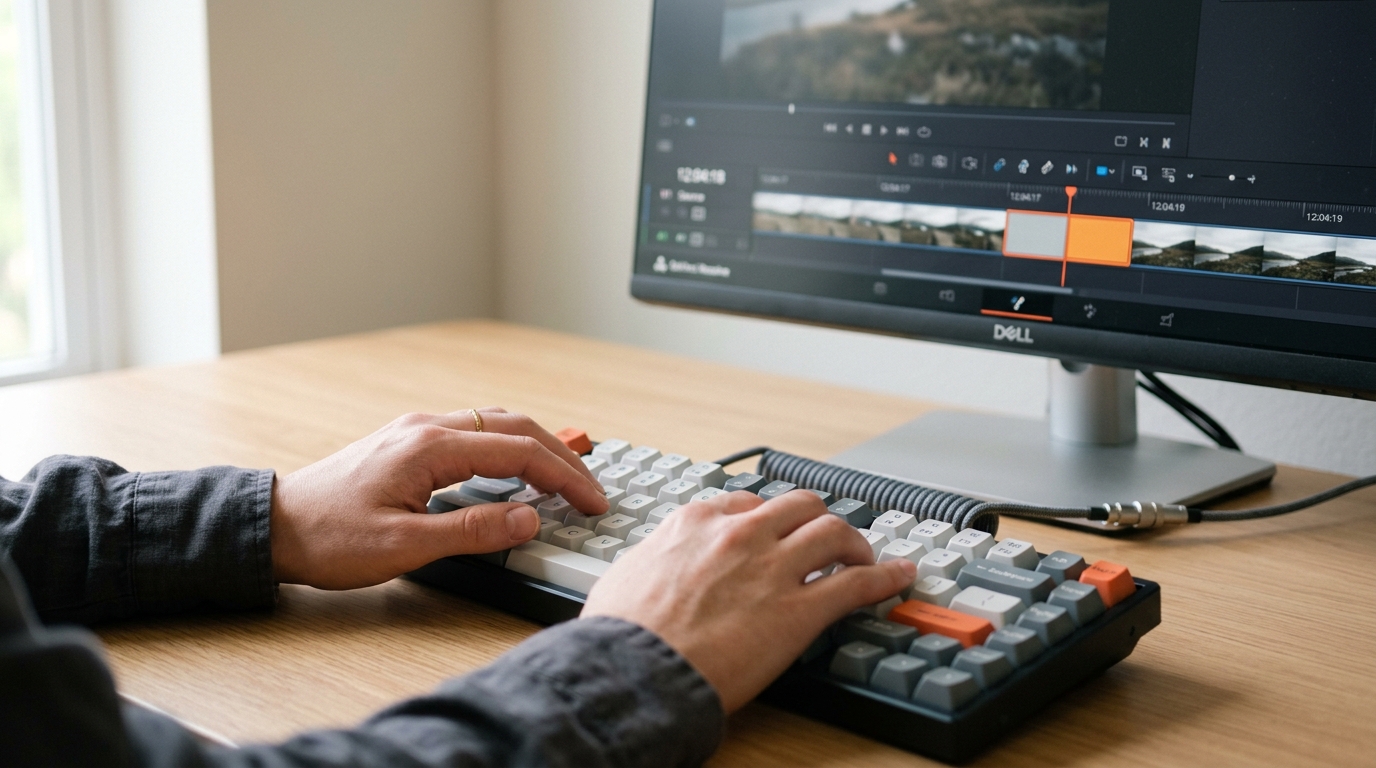
The four-question triage
Before you do anything else, park the clip and run through this:
1. Where in the clip does the artefact appear? Note the timecode. If it lands in the first or last eight frames, a trim almost certainly removes it with no consequence.
2. Is the camera or subject moving at that moment? Motion masks enormous amounts of damage. A smearing background during a fast pan reads as natural motion blur to most viewers at normal playback speed.
3. Where is the audience's attention directed? If the artefact is in the periphery while a speaking face or a moving object holds the centre, it will not register. If it is on the face, the hand, or the object the scene is about, it will.
4. How long do you need to hold on this shot? If your edit calls for two seconds and the artefact arrives at second three, trim to two seconds and move on.
If you answer those questions and the artefact is central, static, early, and held, regenerate. If any one of those conditions is false, try the cut first.
The trim-and-cover toolkit
Most artefacts surrender to one of five editorial moves before you ever need to go back to generation.
Trim the tail or head. Export your clip and check it frame by frame at the in and out points. Generators consistently place their worst deformations in the first and last half-second as the diffusion process ramps up or settles. A four-frame trim on each end costs nothing and fixes most peripheral morphing.
Cut on motion. If your artefact is mid-clip and you cannot trim to it, place your cut at the peak of a movement, a head turn, a hand raise, a camera push. The brain suspends detail-checking during kinetic transitions. This is not a trick unique to AI footage; it is how action sequences have been cut since the 1970s. It simply matters more here.
Cover with a cutaway. If you have a reaction shot, an insert, or any contextually valid cutaway, place it over the damaged frames. You are not hiding a flaw; you are doing what editors always do, using coverage. If you do not have a cutaway, generate a simple one: a static close-up of an object in the scene, a two-second neutral reaction. These are cheap generations with low artefact risk because they ask little of the model.
Drop the opacity or use a patch layer. For a background texture that pulses or a wall that breathes, duplicate the clip, freeze the cleaner frame at the start of the artefact, and blend it over the problem section with a short opacity dissolve in and out. This works in any NLE and takes under two minutes. The result is not perfect but it is invisible at normal viewing speed.
Speed adjustment. A subtle speed increase through the damaged section, 105 to 115 percent, shortens the audience's exposure to it without reading as a speed effect. Do not push beyond 115 unless the shot already has inherent motion that justifies it.
When regeneration is actually the right call
Regenerate when the artefact is on the primary subject's face during a held close-up with no coverage alternative, when a morph happens on the exact beat your sound design or music accents, making it impossible to cut past, or when the shot is so short, under two seconds, that there is no frame to hide in and no coverage to cut to. In those cases, send it back, but send it back with a tighter prompt. Note what failed specifically: was it the hands, the eyes on a hold, the background at rest? Adjust that element in your next generation. Regenerating blindly returns the same class of problem.
Also regenerate, without hesitation, when the artefact is in your film's single most important image, the shot on your poster, the frame in your trailer, the image that has to carry the whole piece. Some shots have to be clean. Spend the credits there.
Building the habit
Keep a simple column in your shot-tracking document: Artefact / Location / Resolution. Log what you found and what fixed it. After one project you will have a personal reference that tells you, from experience, that this generator tends to smear hands on held frames but handles hair in motion cleanly. That knowledge changes how you prompt, how you plan coverage, and how long you spend in the edit. Start with your next clip: triage before you regenerate.