When to cut around a flaw and when to regenerate it
AI footage always hands you a mix of brilliant moments and quiet disasters in the same clip. Knowing which flaws to fix in the edit and which ones demand a new generation is the skill that separates a finished film from an endless render queue.
You generate a clip, play it back, and somewhere between seconds two and four something goes wrong. A hand grows a sixth finger, a wall breathes, a face slides sideways for a single frame before recovering. Your instinct is to send it back and generate again. Sometimes that is exactly right. But re-generating costs credits, costs time, and, critically, it is not guaranteed to fix the specific problem you saw. A second render will produce a different set of problems in different places. The discipline of AI editing is learning to read a flaw and decide, in under thirty seconds, whether the edit can swallow it or the model needs another go.
The decision is not about your standards being too high or too low. It is about the nature of the flaw and where it sits in the shot. A bad artefact in the background of a wide shot, on screen for eight frames before a cut, will register to almost no viewer. The same artefact centred on a face in close-up, held for two seconds, is the only thing anyone sees. The editor's job is to understand temporal weight and spatial focus, and to apply both before touching the generate button again.
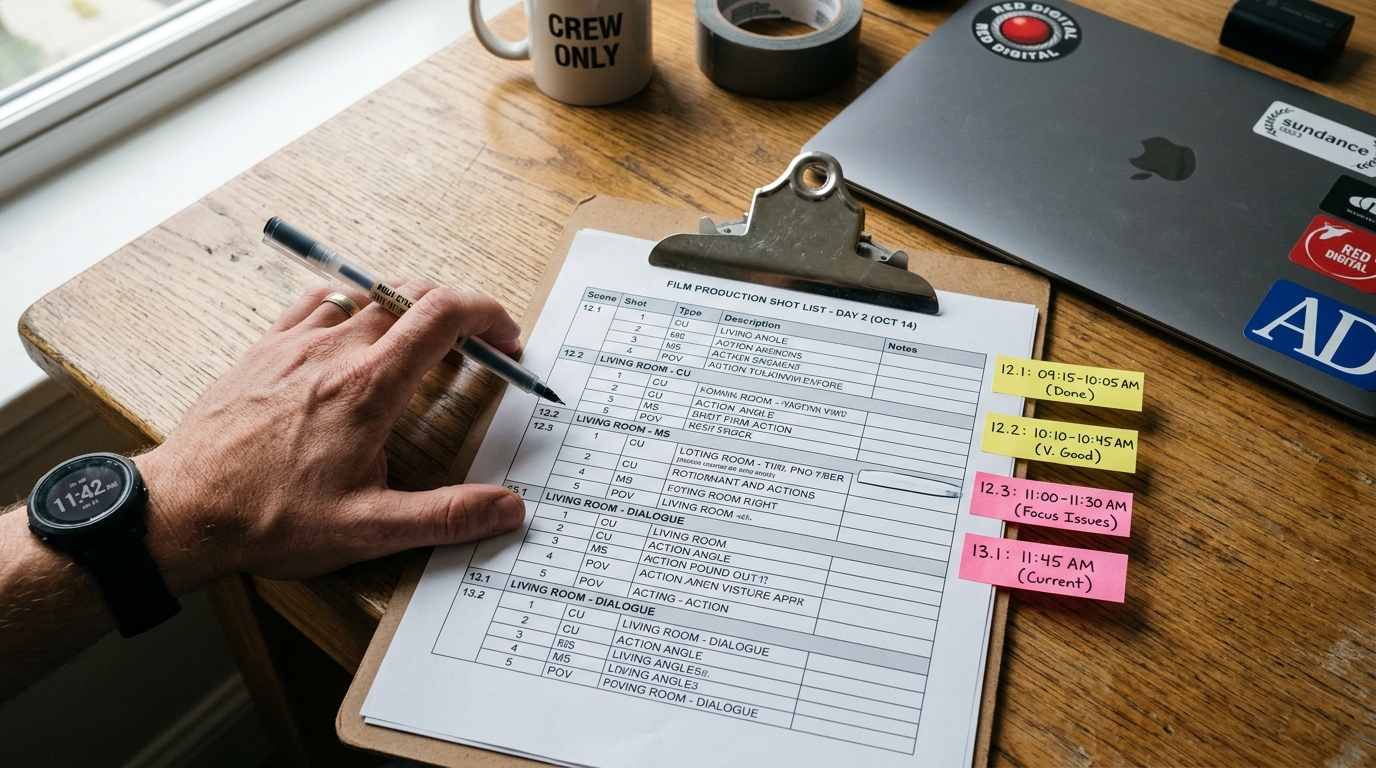
Read the flaw before you react
Watch the clip twice before doing anything. First pass: just watch. Second pass: note the timestamp, the screen region, and the duration. Ask three questions.
1. Is the flaw in the focal zone? If the subject is sharp and centred, artefacts elsewhere are far less visible. If the flaw is on the subject's face, hands, or any object the scene is about, it is in the focal zone.
2. How long is it on screen? Fewer than ten frames at 24fps is roughly 0.4 seconds. Most viewers will not consciously register an artefact that brief, especially if a cut follows immediately.
3. Does the motion before and after the flaw cut cleanly? A clip that has a broken middle section but clean head and tail frames can be split and used as two separate shots, bracketing a cutaway.
If the flaw is outside the focal zone, brief, and the clip has clean handles, cut around it. If it is on the subject, long, or the clip has no clean section worth using, regenerate.
The cutaway budget
Every multi-shot scene should include what editors call B-roll or cutaways: insert shots of objects, environments, or reactions that have no artefact risk because they carry no performance. In AI production, the cutaway serves a second purpose: it is your artefact budget. For every two or three hero clips you generate, generate one simple cutaway, a door handle, a window, a pair of hands on a table. Keep these in a folder. When a hero clip has a mid-section flaw, drop a cutaway over it. The timeline reads as intentional coverage, not a patch.
```
Cutaway shot prompt structure (model-agnostic):
[object or environment detail], [surface texture], [lighting condition],
static camera, no motion blur, [aspect ratio], [duration]
Example:
weathered wooden table surface with a ceramic cup and scattered papers,
natural window light from left, static camera, no motion blur, 16:9, 4 seconds
```
A static or near-static cutaway is far less likely to produce artefacts than a clip with a moving subject, so your cutaway folder will have a high yield rate and become genuinely reusable across projects.
Colour and stabilisation as a cover pass
Some artefacts are not structural but tonal: a clip where the sky shifts hue mid-shot, or where exposure pulses slightly. Before regenerating these, try a luminance curve lock in your colour tool and a gentle temporal smoothing pass. DaVinci Resolve's noise reduction set to temporal radius 2 with spatial set to zero will often calm a flickering texture without softening the image. This is not hiding a flaw; it is finishing the frame the model started.
For spatial warping artefacts, a small stabilisation warp applied to the affected region using a mask can pin a drifting background element. If the warp is on the subject itself, no stabilisation pass will save it. Regenerate.
Setting your regeneration threshold
Decide your threshold before you start a session, not in the heat of reviewing a clip you spent ten minutes prompting. A practical threshold:
- Flaw on subject's face or hands for more than 15 frames: regenerate.
- Flaw in background, under 10 frames, clean handles available: cut around it.
- Tonal or exposure flicker on any region: try a colour pass first.
- Structural warp on subject: regenerate.
- Structural warp in background: cutaway patch or crop.
Write this down and pin it above your monitor. The goal is to stop making the decision emotionally, shot by shot, and start making it systematically.
Next session, open your last project and review every clip you regenerated. Count how many of those original flaws would have passed the threshold above. The number is usually surprising, and it is time back in your day.